Setting Up Meta Ads Pixel
Connect your Facebook Pixel to NettoProfit in minutes. Step-by-step instructions with visuals for every field.
Before you start
You need access to three Meta products. Make sure you are logged into the Facebook account that owns your business.
Fields required by NettoProfit
Four values needed — here is exactly where to find each one.
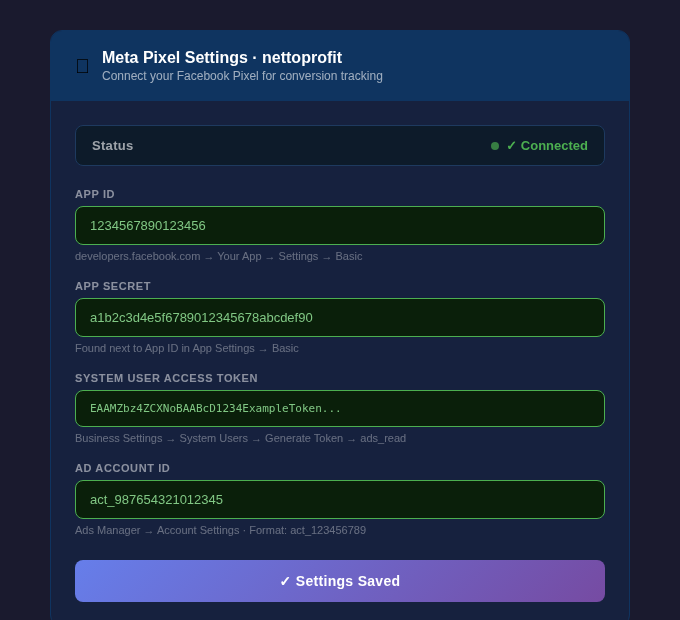
| Field | Location | Status |
|---|---|---|
| App ID | developers.facebook.com → Your App → Settings → Basic | Required |
| App Secret | developers.facebook.com → Your App → Settings → Basic → Show | Required |
| System User Access Token | business.facebook.com → Business Settings → System Users | Required |
| Ad Account ID | adsmanager.facebook.com → Account Settings (format: act_XXXXX) | Required |
Go to the Facebook Developer Console and open your app. If you don't have one, click Create App and choose Business as the type.

Go to developers.facebook.com and log in
Click My Apps in the top navigation
Select your app, then go to Settings → Basic in the sidebar
Your App ID is the numeric identifier at the top of the Basic Settings page.

Find the App ID field — it is a number like 1234567890123456
Click Copy next to it
Paste it into the App ID field in NettoProfit
The App ID is not sensitive and safe to paste directly into the plugin settings.
The App Secret is hidden by default. Click Show to reveal it — you may need to confirm your Facebook password.

Find the App Secret row — it shows dots by default
Click Show and confirm your identity if prompted
Copy the revealed value and paste it into App Secret in NettoProfit
Keep this secret. Never share your App Secret publicly or commit it to version control.
A System User generates tokens that never expire, making them ideal for plugin integrations.

Go to business.facebook.com → Business Settings
In the sidebar under People, click System Users
If none exist, click Add and create one with Admin role
Click Generate Token on your system user
Select your app and enable the ads_read permission — this gives NettoProfit read-only access to your ad data.

Select your app from the dropdown
Find ads_read in the permissions list and toggle it ON
Click Generate Token

Copy immediately. After closing this dialog, the token will not be displayed again. Save it in a password manager.
Your Ad Account ID always starts with act_. Copy it including the prefix.

Go to adsmanager.facebook.com → Account Settings
Find the Ad Account ID — it looks like act_987654321012345
Copy the full value including act_ and paste it into NettoProfit
The format is always act_ followed by digits. If you only see the number, add act_ manually before it.
Paste all four values into NettoProfit and click Save Settings. The status will change to Connected.

Paste App ID
Paste App Secret
Paste System User Access Token
Paste Ad Account ID (with act_ prefix)
Click Save Settings — status should show Connected
Meta Ads connected!
Your Facebook Pixel is now active in NettoProfit. Conversion data will start flowing into your profit dashboard.
Open Dashboard →